|
FROG PRINCE

This tutorial is my own design and any resemblance to any other tutorial is purely coincidental.
© 2012 Yorkshire Lass Designs in PSP. All Rights Reserved.
It was created in Paint Shop Pro X, but can be realised in other versions.
However, some tool descriptions and locations may vary, but the overall result
should be the same.
You will also need Animation Shop.
My thanks to all the artists and other creators, known and unknown to me,
who have
inspired this tutorial and whose work I have used.
You will need the following to complete this tutorial:
Tubes
vsc_janwitch.psp
yp_wordart_dear_diary.psp
The above can be downloaded
HERE
Download and extract to a file on your computer.
Open tubes in PSP and minimise.
Plug Ins
I.C.NET Software - Filters Unlimited
The above can be downloaded here
PSP Designer Studio
Download and extract to a file on your computer. Save to your Plug Ins folder
***********
Drag this arrow with you to mark your place in the tutorial
Drag and Drop Script from Dynamic Drive

**********
INSTRUCTIONS
STEP 1
Open a new canvas 800 x 800 pixels white background
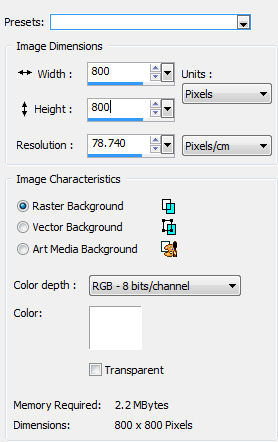
Layers >> Promote Background Layer
STEP 2
Layers >> New Raster Layer
Selection Tool >> Custom Selection

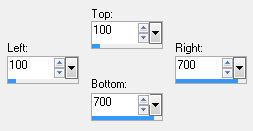
STEP 3
In the Materials Palette load Foreground with #F8F8FF Ghost White
Flood fill selection with Foreground colour
Do not de-select
Effects >> >>Filters Unlimited 2.0
Edges, Square >> Square Edge 17
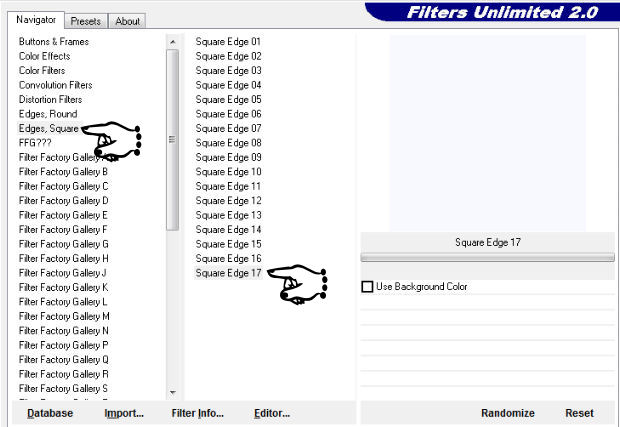
Do not de-select
This is what you should have now
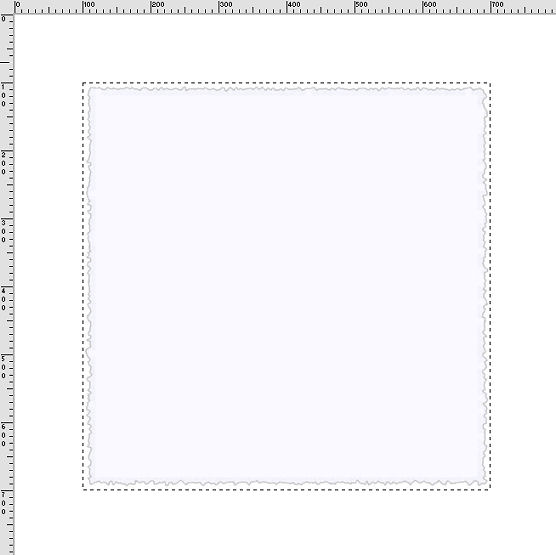
STEP 4
Maximise tube vsc_janwitch.psp
Edit >> Copy
Minimise tube
Edit >> Paste as New Layer
With the Move Tool position to the left of canvas
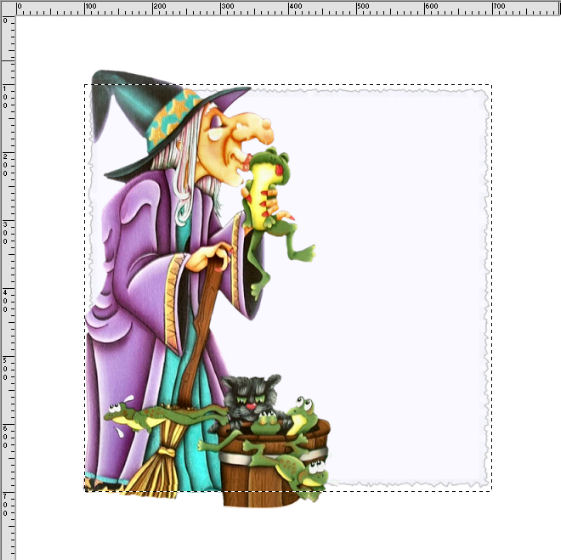
Selections >> Select None
STEP 5
Adjust >> Blur >> Gaussian Blur
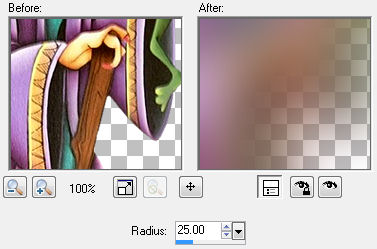
STEP 6
Effects >> Texture Effects >> Mosaic - Antique
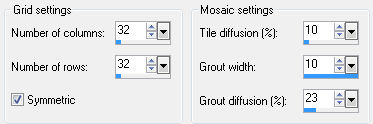
In the Layers Palette reduce the opacity to 80%
Layers >> Properties
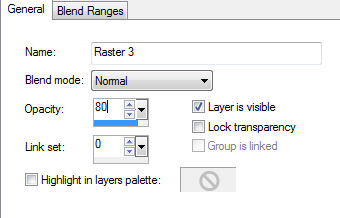
STEP 7
In the Layers Palette highlight Raster 2
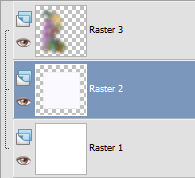
Selection Tool >> Freehand Selection

Draw out a selection as below
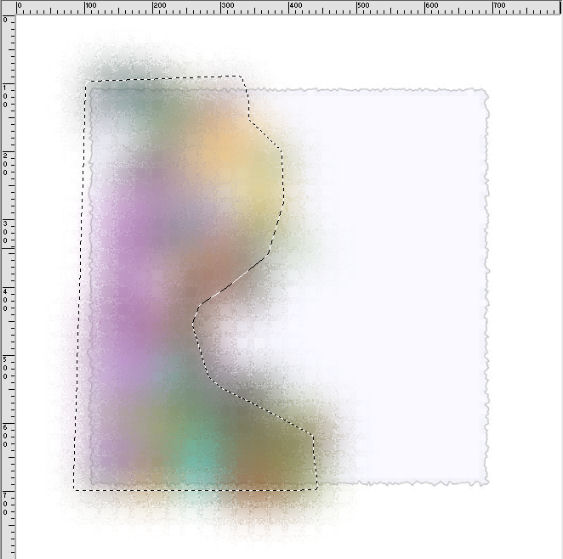
Hit the Delete key
STEP 8
In the Layers Palette highlight Raster 3
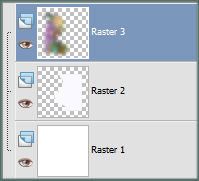
The witch tube should still be on the clipboard
Edit >> Paste as New Layer
With the Move Tool position to the left of the canvas, over the blurred outline
Selections >> Select None
This is what you should have now
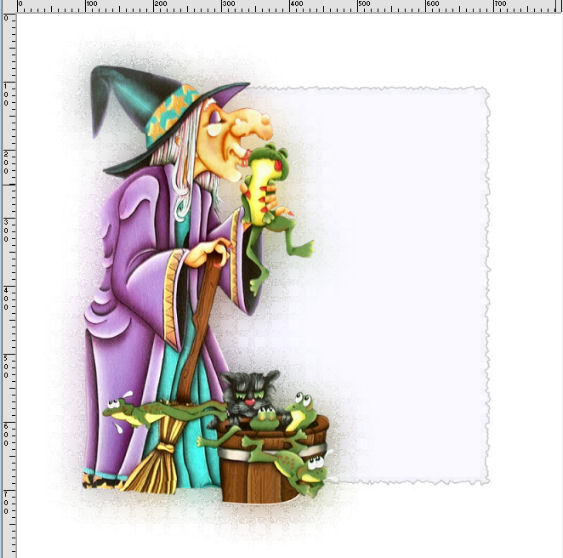
STEP 9
Maximise yp_wordart_dear_diary.psp
Edit >> Copy
Minimise tube
Edit >> Paste >> Paste as New Layer
With the Move Tool position on the right of the witch
See finished tag for placement
STEP 10
Layers >> New Raster Layer
Add your name and/or watermark
NOW TO ANIMATE
If you do not wish to animate, you can stop here
Layers >> Merge >> Merge All (Flatten)
Resize if desired
Save as a jpg
STEP 11
Layer >> New Raster Layer
Rename this layer "Eyes-cat"
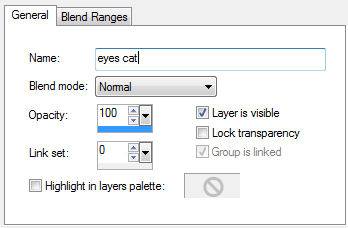
With the Selection Tool >> Freehand Selection

Hold down the shift key and select the cat's eyes
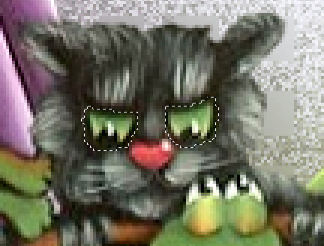
In the Materials Palette load Foreground with #000000 Black
Select the Flood Fill Tool and flood fill selections with foreground colour
Selections >> Select None
STEP 12
Layer >> New Raster Layer
Rename this layer "Eyes-frogs 1"
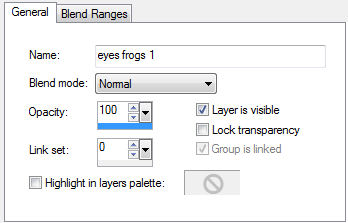
With the Selection Tool >> Freehand Selection
Hold down the shift key and select the eyes of the frogs not in the bucket

In the Materials Palette load Foreground with #788c4d Green
Select the Flood Fill Tool and flood fill selections with foreground colour
Selections >> Select None
STEP 13
Layer >> New Raster Layer
Rename this layer "eyes frogs 2"
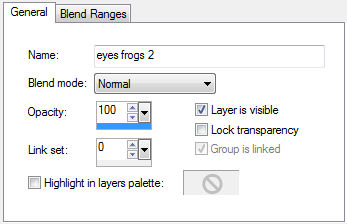
With the Selection Tool >> Freehand Selection
Hold down the shift key and select the eyes of the frogs in the bucket
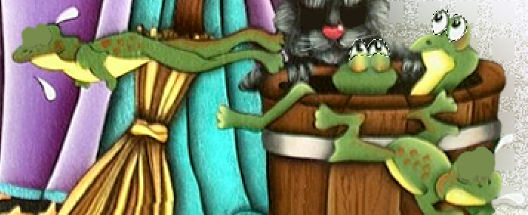
In the Materials Palette load Foreground with #94b16d Green
Select the Flood Fill Tool and flood fill selections with foreground colour
Selections >> Select None
STEP 14
In the Layer Palette hide Eyes-cat, eyes frogs 1 and eyes frogs 2
Highlight Raster 4
Layers >> Merge Visible
STEP 15
Edit >> Copy
Open Animation Shop
Edit >> Paste >> As New Animation
Back to Paint Shop Pro
STEP 16
In the Layers Palette, unhide Eyes cat, hide Eyes Frogs 1 and Eyes Frogs 2
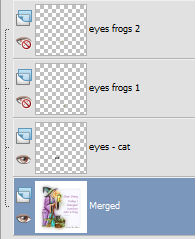
Edit >> Copy Merged
Over to Animation Shop
Edit >> Paste >> After Current Frame
Back to Paint Shop Pro
STEP 17
In the Layers Palette, hide Eyes cat, unhide Eyes Frogs 1 and hide Eyes Frogs 2
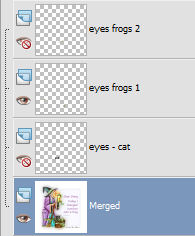
Edit >> Copy Merged
Over to Animation Shop
Edit >> Paste >> After Current Frame
Back to Paint Shop Pro
STEP 18
In the Layers Palette, hide Eyes cat, hide Eyes Frogs 1 and unhide Eyes Frogs 2
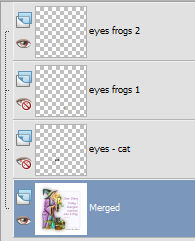
Edit >> Copy Merged
Over to Animation Shop
Edit >> Paste >> After Current Frame
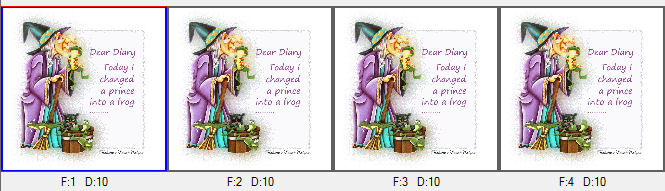
This is what you should have now
STEP 19
Run your animation
View >> Animation
The eyes should be blinking
Close Animation
STEP 20
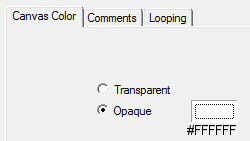
Animation >> Animation Properties
STEP 21
Resize animation if desired
I resized mine to 650 x 650 pixels
Animation >> Resize Animation

STEP 22
Save as a gif
I hope you enjoyed this tutorial.
If you have any questions or would like to show me your result
EMAIL ME
|